Creating a reservation from the dashboard
When a customer walks in or calls, staff book them straight from the Reservations screen. It's the same booking your online page creates — so it checks for overlaps, matches the guest to your guest list, and can start the bay automatically.
Before you start
You'll need
- To be signed in as front desk, manager, or owner.
- The customer's name (phone and email are optional but recommended — they let the customer manage the booking and get a door code).
- The bay, date, start time, and length.
Step by step
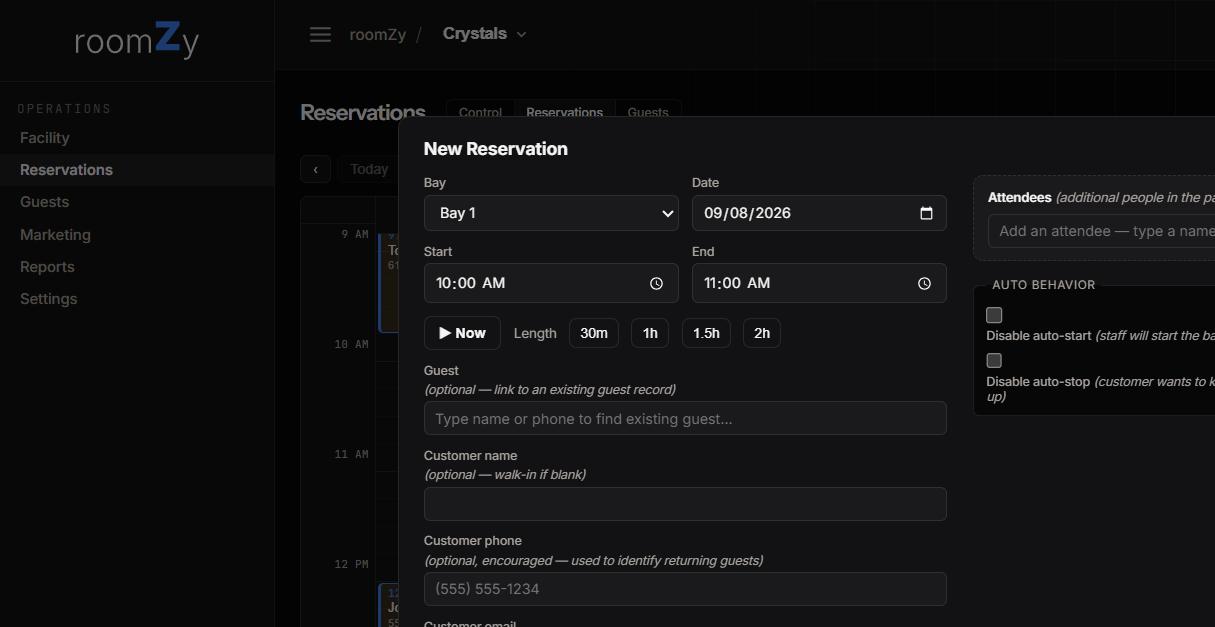
- Open Reservations from the left menu, then tap an empty spot on the calendar (or the new-reservation button) to open the form.
- Set the Date and Start. Start and End are pickers over the day's slots — pick one, or type any time (2:57, 2:57 pm) and tab away. On today, times already gone aren't offered. Tap a Length chip (30m / 1h / 1.5h / 2h) to set the end, or hit ▶ Now to start at this moment.
- Pick the bays. The chips show every bay; the line above them says how many are free at that time, and a bay that's busy is struck out with who has it. Tap one bay for a normal booking, or several for a party — All free takes every open bay, Clear starts over. Several bays become linked bookings made together. See Booking several bays.
- Returning guest? Type their name or phone in the Guest box to link their record. If they hold membership minutes, points or gift value, a Use their balance for this booking tick appears — tick it and the time is covered from their balance (the card then reads Covered by the guest's balance). Walk-in? Just type a Customer name (leave Guest blank) — phone and email are optional but recommended.
- Leave Auto behavior alone for the normal case — roomZy will start and stop the bay for you. Tick Disable auto-start / Disable auto-stop only if staff want to control it by hand.
- Save. The booking appears on the calendar right away.
roomZy re-checks the slot as you save — if that bay and time were just taken, it tells you so you can pick another.
A late session can run past midnight — set an end earlier than the start (e.g. 11:30 pm → 12:30 am) and roomZy books it into the next day, with an ends next day hint on the form.
Playing in a league?
- If the guest you've booked is on an active league roster, a Playing in league dropdown appears on the form. Pick the league and roomZy tags the booking — the round they play scores to that league automatically. Full walkthrough: Running a league.
What happens after you save
Automatically
- The reservation shows on the calendar and the control screen's next-up list with a countdown.
- If the customer is new, they're added to your guest list; if they've been before, the booking links to their record.
- If auto-start is on for that bay, roomZy powers it up around the start time and powers down at the end — no need to flip anything by hand.
- If the venue uses smart locks and you added an email, the customer gets a door code.
Starting a bay right now (no booking)
For a true walk-in who's playing immediately, you can also just start the bay from the Facility (control) screen — see Start or stop a bay. A reservation is better when you want it on the calendar, tied to a guest, or auto-billed; starting the bay directly is quickest for "they're here, put them on bay 3 now."
Changing or cancelling
Open the reservation's card from the list or calendar to edit the time, cancel it, or (if payment is set up) refund it. Cancelling frees the slot on your online page within a minute.