Booking a bay online
Your booking page lets a customer reserve a bay in about four taps — pick a day, choose how long, pick a time, and confirm. It works on a phone or a computer, and the booking drops straight into your dashboard.
The three steps
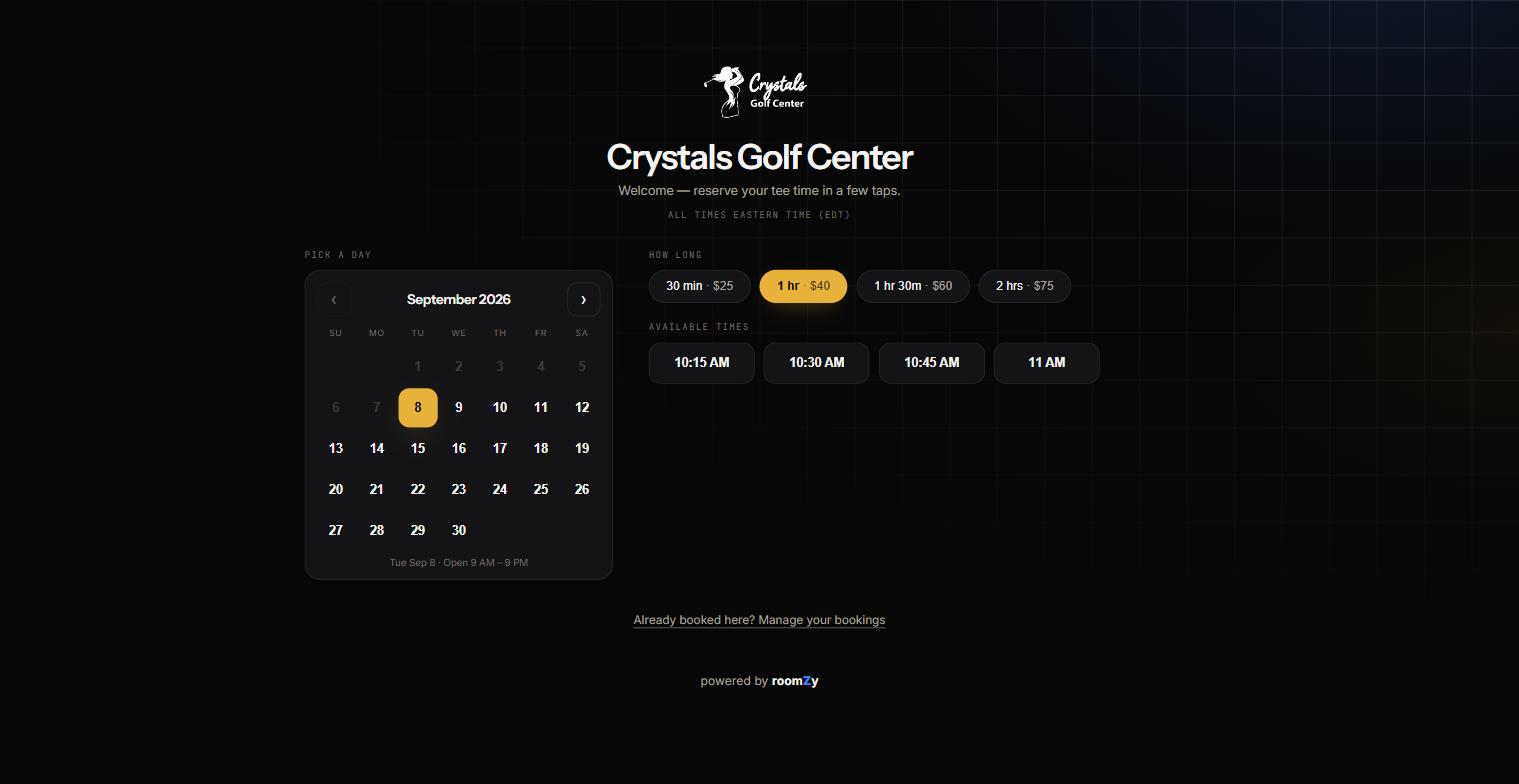
Step by step
- Open the link. Your customers reach it from your website's Book now button, or directly at app.roomzy.io/book/your-venue.
- Pick a day. The calendar opens on the first open day. Greyed, struck-through days are closed; the line under the calendar shows that day's hours.
- Choose the bays (only where the venue offers more than one kind, or lets you book several). Each type — say Standard and VIP room — has a small counter: tap the card to add one, − to take it away, up to three bays in one booking. The chips show the price for everything you've picked. See Booking several bays.
- Choose how long. Tap a length chip (for example 1 hr · $40). If the venue shows prices, they appear right on the chip.
- Pick a time. Only times that leave room for the full length are shown, so a customer can't book a slot that won't fit.
- Enter details. Name, phone, and email. Any extras the venue offers — a swing analysis, an extra player — are ticked here and added to the total. If the venue has a discount code box, it goes here too.
- Confirm. If the venue takes payment online, the button says Continue to payment and opens secure checkout; otherwise it says Request booking and a confirmation link is emailed.
A customer never picks a specific bay — they pick a type where there is one, and roomZy assigns the first free bay of that type. So every open time is bookable, and identical bays never turn into a seating chart.
After booking
What the customer gets
- A confirmation email with the date, time, and time zone.
- A door code (if the venue uses smart locks), and when it starts working.
- A link back to the venue's website, and a way to manage the booking later.
To change or cancel, the customer taps Already booked here? Manage your bookings at the bottom of the page and signs in with a code or the email link (a device that knows them skips straight to the list) — see Change or cancel a booking.
Paid vs. pay-at-the-desk
How the last step behaves depends on how the venue set up payments:
Two paths
- Pays online (Stripe): the customer pays to lock in the time; the booking confirms the moment payment goes through. No email link needed.
- Pays at the desk: the customer gets an email with a link to confirm (no charge yet), and settles up when they arrive.
Setting this up is covered in Setting up payments.