Setting your hours & closures
Your hours decide what customers can book and when bays run. Set the weekly schedule once, then add one-off closures (or special openings) as they come up.
Where to find it
In the dashboard, open Settings → Hours & booking. The weekly grid is at the top; special dates sit right under it.
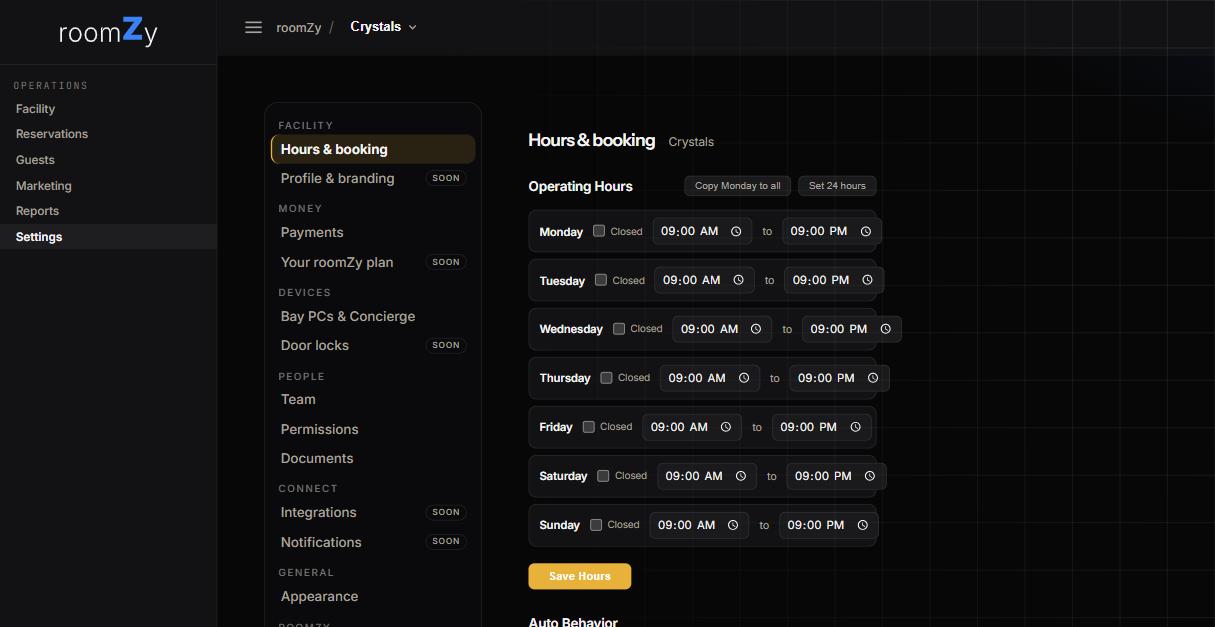
Weekly hours
- For each day, set the open and close time — or tick Closed to mark the day closed.
- Shortcut: set Monday, then Copy Monday to all. Or Set 24 hours for a round-the-clock venue.
- Press Save Hours. Your booking page updates immediately — closed days grey out, and the day's hours show under the calendar.
Closing after midnight
Open late? Set a close time that's earlier than the open time, and roomZy reads it as closing the next morning — open 9:00 AM, close 2:00 AM means that day runs right through to 2 AM. A next day tag appears on the row so it's clear at a glance.
What it does
- The booking page offers the late start times under that day — 11 PM, 12 AM, 1 AM — and a booking that starts after midnight is priced and confirmed like any other.
- On your dashboard calendar those bookings sit under the right day: a Tuesday-night 1 AM booking shows on Tuesday, not Wednesday. You can click the late rows to book them too.
Special hours & closures
One-off overrides
- Close a normally-open day — a holiday, private event, or maintenance.
- Open a normally-closed day — a birthday party on a closed Monday, say, with its own open/close times.
- Add an optional reason — it shows on your calendar so staff know why.
A special-hours entry always wins over the weekly schedule for that date. Add or remove them anytime; upcoming ones are listed, and past ones tuck away.
Automatic start & stop
Further down the same page. roomZy starts a bay before each booking and powers it down after; four numbers set the timing.
Four numbers, one Save
- Start the bay … minutes before a booking — projector warm-up, PC wake. 5 is typical.
- Power it down … minutes after a booking ends — a little grace for a last putt. 2 is typical.
- Keep it on if the next booking is within … minutes — back-to-back bookings don't cycle the projector.
- Minimum gap between bookings — new bookings on the same bay can't be closer than this.
Changing the first two re-times every upcoming booking, not just new ones. Below the numbers, Pause automatic start & stop stops everything firing on its own — for an event, a training day, or while equipment is being serviced — until you switch it back.
Venues with the Concierge choose how a booking ends (hard stop, or ask the player for more time) under Settings → Concierge; this page just states the current choice.
Online booking
The last section says who takes your online bookings — your roomZy page, your own platform, or not online — and takes your booking-page address and a contact line. See Who takes your online bookings.