Reservations · for your staff
roomZy
Calendar
Your reservations calendar
The Reservations screen is your book of business — every booking on a timeline, by bay, on your venue's clock. It's where staff see the day, jump around, and open any booking.
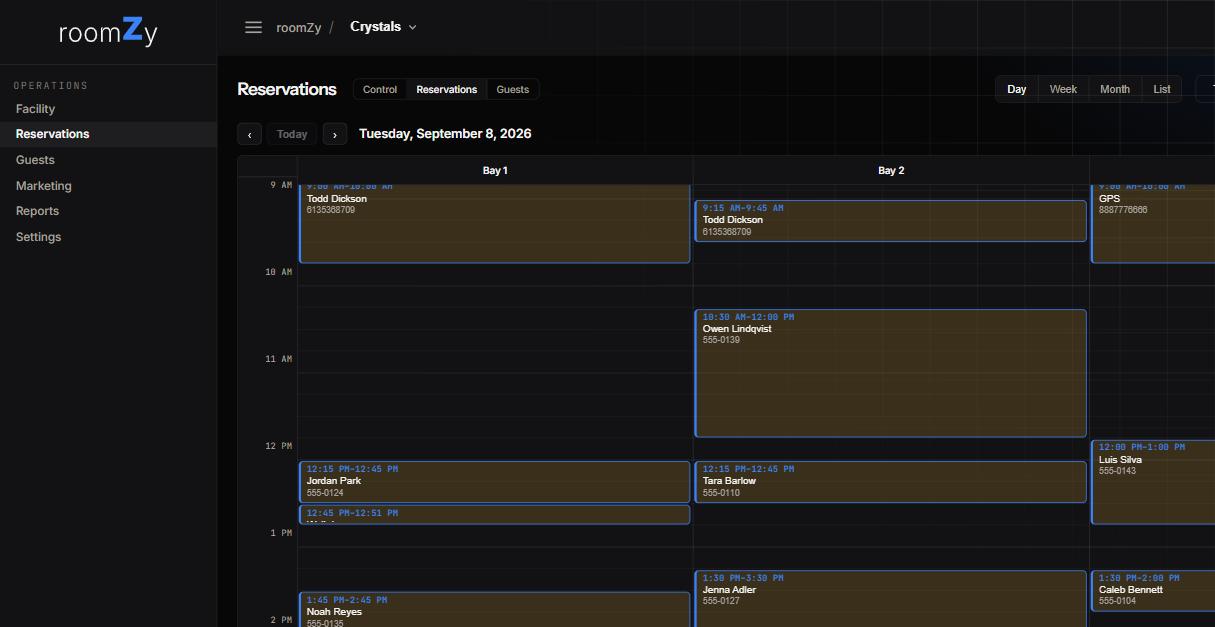
Day view — each bay is a column, each booking a block; switch views top-right.
Five views
Switch with the buttons top-right
- Day — every bay side by side for one day; best for running the floor.
- Week — one bay across seven days; best for spotting gaps.
- Month — the big picture at a glance.
- List — a searchable list, handy for finding a specific booking.
- Gaps — the week's open slots per day, sized to your booking-page lengths. Tap a slot to start a booking already filled in for that bay and time — the fastest way to fill a quiet stretch.
Getting around
Navigation
- The ‹ › arrows step back and forward; Today jumps back to now.
- Times and dates are always on the venue's clock — even if you're viewing from a phone in another time zone.
- Each block shows the time, guest, and length; colour marks its state (scheduled, running, completed).
Working a booking
Tap an empty slot to start a new reservation (see Creating a reservation). Tap an existing booking to open its card — edit the time, cancel it, or (where payment is set up) take or refund a payment. A cancel frees the slot on your public page within a minute.
Moving, copying, and pasting a booking
Plans change — someone booked the wrong day, or wants to slide to a later time. Move a booking without re-typing it, and it keeps its length.
Two ways to move a booking
- Drag it. Grab a booking block and drop it on an open slot — a new time, a different bay, or (in Week view) another day. Its length comes with it: a 90-minute booking stays 90 minutes.
- Right-click it. Right-click a booking for Copy, Cut (move), or Edit. Then right-click an open slot for Paste or New booking here.
Copy vs. cut
- Cut (move) — the same booking, in a new place. Same result as dragging it.
- Copy — a duplicate. Copy a regular's usual booking, paste it onto next week — same guest and length, ready to confirm.
Every move and paste is checked against your other bookings — roomZy won't let two land on the same bay at the same time.
roomZy
Questions? Email support@roomzy.io.